Clients / Brokers
Clients / brokers manage their organization end users through an embeddable Organization Users panel hosted at https://manage.iccandle.site/.
Platforms create the client account in the admin dashboard, assign a unique identifier, top up the credit bundle, then give the client an embed URL that uses the platform's shared API key plus that identifier.
Production embed:
https://manage.iccandle.site/?apikey=YOUR_API_KEY&identifier=YOUR_IDENTIFIER&theme=system&lang=zh&primary=57F63B
How it fits together
- In the platform admin dashboard, create the client / broker with a unique identifier and allocate a credit bundle — see Top Up Clients.
- Create API key (shared by all clients) — see API Keys.
- Give the client the platform
apikeyand that client's uniqueidentifier. Clients are separated byidentifier, not by API key. - The client embeds https://manage.iccandle.site/ in their host app (iframe or dedicated page).
- End users are added under that broker by calling seamless auth (sub-org) with the same
identifier. - The broker assigns plans to those users in the Organization Users panel.
The panel authenticates from URL search parameters. There is no separate sign-in form inside the embed.
Embed URL parameters
| Parameter | Required | Description |
|---|---|---|
apikey | Yes | Platform API key (one key for the platform). Sent as x-api-key on backend requests. |
identifier | Yes | Unique organization / tenant id for this client / broker. Separates clients under the shared key. Spaces are allowed (for example a broker). |
lang | No | UI language: en (default) or zh |
theme | No | UI theme: light, dark, or system (default) |
primary | No | Brand primary color as HEX (RGB, RRGGBB, optional leading #). Invalid values are ignored. |
Example iframe:
<iframe
  src="https://manage.iccandle.site/?apikey=YOUR_API_KEY&identifier=YOUR_IDENTIFIER&theme=system&lang=zh&primary=57F63B"
  title="Organization Users"
  style="width:100%;height:100%;border:0;"
></iframe>
The apikey value is a secret. Prefer loading the iframe from a page your staff already control, avoid putting live keys in public docs or tickets, and rotate the key if a URL is leaked. The query string is visible in the browser address bar and network logs.
Missing or invalid credentials
If apikey or identifier is missing or malformed, the panel shows Missing embed credentials and lists each problem (missing / malformed) with a short hint.
Expected shape:
/?apikey=YOUR_API_KEY&identifier=YOUR_IDENTIFIER
| Parameter | Validation |
|---|---|
apikey | 8–128 characters: letters, numbers, _, -, . |
identifier | 2–64 characters: letters, numbers, _, -, ., :, or spaces |
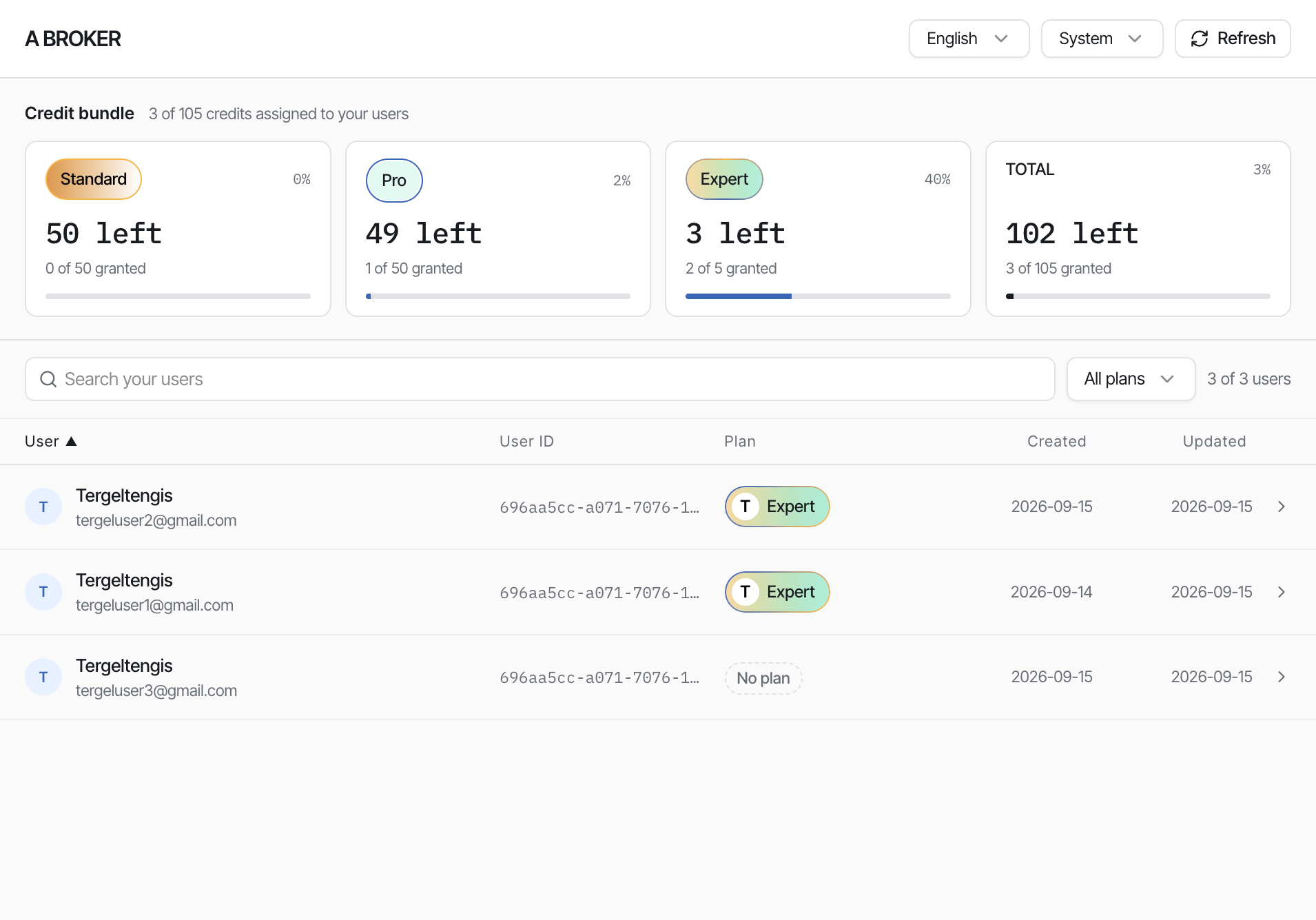
What the Organization Users panel shows
Header
- Account name (from the organization balance when available, otherwise the
identifier) - Language and theme controls
- Refresh
Credit bundle
Summary cards for Standard, Pro, Expert, and TOTAL:
| Metric | Meaning |
|---|---|
| N left | Credits still available to assign |
| X of Y granted | Credits already assigned to users |
| Progress bar | Share of the tier that is granted |
Low remaining credits use a warning style; a depleted tier uses a destructive style.
Caption example: 12 of 50 credits assigned to your users.
Users table
| Column | Description |
|---|---|
| User | Display name and email |
| User ID | User id |
| Plan | Current plan pill (Standard, Pro, Expert, or No plan) |
| Created | Created date (YYYY-MM-DD) |
| Updated | Updated date (YYYY-MM-DD) |
On narrow layouts (under about 760px), users appear as stacked cards instead of a grid.
Search, filter, and sort
- Search your users — filters by name, platform name, email, user id, or sub-org name
- Plan filter — All plans, No plan, or a specific tier
- Click column headers to sort (User, User ID, Plan, Created, Updated)
- Pagination with Previous / Next (loads more from the server when needed)
Assign a plan to a user
- Select a user row to open the detail drawer.
- Review Current plan (and Last active when available).
- Under Assign a plan, choose Standard, Pro, or Expert. Tiers with no credits left are disabled.
- Select Review assignment to ….
- Confirm in Assign this plan? — the dialog shows the plan change and that one credit is drawn from the bundle.
- Select Assign plan.
Rules enforced in the UI:
- Assigning a paid plan uses one credit of that tier for as long as the user stays on the plan.
- Tiers with no credits left cannot be selected.
- If the bundle is fully assigned, the panel tells the client to ask the platform admin to top up.
Platform admin: client / broker records
In the admin dashboard, platforms also maintain the client / broker account list (create, edit status, allocate bundles). That list is separate from the Organization Users embed, which only shows end users belonging to one client / broker.
See:
- Top Up Clients — allocate credits so the embed can assign plans
- Client Statistics — balances and activity
Related guides
- Seamless auth (sub-org) — add / authenticate users under this broker
- API Keys
- Top Up Clients
- Seamless user authentication